

Got a new PS5? Or maybe you are helping a friend move their games?
Don’t worry. You will not lose your game progress. Your save data can travel with you.
In this guide, we will show you every way to move PS5 save data to another PS5. We will keep it simple. No hard words. No confusing steps.
Let’s understand this step by step.
Why Would You Need to Transfer PS5 Save Data?
There are many reasons people need this:
- You bought a new PS5 (maybe the Slim or Pro version)
- Your old PS5 broke down
- You are selling your PS5 and buying a new one
- You want to play on a friend’s PS5 too
- You are setting up a second PS5 at home
Whatever the reason, your hours of gameplay matter. Nobody wants to start Elden Ring from level 1 again. Right?
The good news is Sony gives you three easy ways to move your data. We will explain all three.
3 Ways to Transfer PS5 Save Data to Another PS5
Here are your options:
- Direct transfer using a LAN cable (fastest way)
- PlayStation Plus Cloud Backup (easiest way)
- USB Drive or External SSD (works without internet)
Let’s look at each one closely.
Method 1: Direct Transfer Between Two PS5 Consoles
This is Sony’s official “Console to Console” feature. It is built right into your PS5.
Think of it like pouring water from one glass to another. Fast and simple.
What You Need
- Both PS5 consoles turned on
- A LAN cable (also called an Ethernet cable) to connect them directly
- Or, you can use Wi-Fi if you don’t have a cable (a bit slower)
Step-by-Step Guide
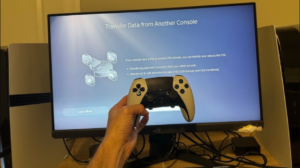
- On your new PS5, go through the setup screens until you see “Transfer Data from Another PS5 Console”
- Select Continue
- Connect both consoles using a LAN cable (or connect both to the same Wi-Fi)
- On your old PS5, confirm the transfer request
- Choose what you want to move: games, saved data, settings, and more
- Tap Next and wait for the transfer to finish
That’s it. Your games and saves will now be on your new console.
Quick Tip
Using a LAN cable is much faster than Wi-Fi. If you have one at home, use it. It can save you hours of waiting time.
Method 2: Use PlayStation Plus Cloud Backup
Do you have a PlayStation Plus subscription? Then this method is perfect for you.
Cloud backup means your save files are stored online. You don’t need any cable or USB drive.
Why This Method Is Great
- No cables needed
- Works from anywhere with internet
- Your saves are safe even if your PS5 gets lost or damaged
Step-by-Step Guide
- On your old PS5, go to Settings
- Select Saved Data and Game/App Settings
- Choose Saved Data (PS5)
- Select Cloud Storage
- Pick Upload to Cloud Storage
- Choose the games you want to back up
- Confirm the upload
Now go to your new PS5 and do this:
- Go to Settings > Saved Data and Game/App Settings
- Select Saved Data (PS5) > Cloud Storage
- Choose Download to Console
- Pick the games you want to restore
Your saved data is back. Simple as that.
One Thing to Remember
Cloud storage needs an active PS Plus plan (Essential, Extra, or Premium). Without it, this method won’t work.
Method 3: Use a USB Drive or External SSD
No internet? No problem. This method works completely offline.
It’s like copying files to a pen drive from your computer. You have probably done this before.
What You Need
- A USB drive or external hard drive (with at least 32GB space, more if you have many games)
- Format it to exFAT before using it with PS5
Step-by-Step Guide
On your old PS5:
- Plug in the USB drive
- Go to Settings > Saved Data and Game/App Settings
- Select Saved Data (PS5) > USB Extended Storage or USB Drive
- Choose Copy to USB Drive
- Select the games you want and confirm
On your new PS5:
- Plug in the same USB drive
- Go to Settings > Saved Data and Game/App Settings
- Select Saved Data (PS5) > USB Drive
- Choose Copy to Console Storage
- Pick your saved files and confirm
Done! Your save data is now safely on your new PS5.
Which Method Should You Choose?
Good question. Here’s a simple way to decide:
- Setting up a brand-new PS5 for the first time? Use the direct console-to-console transfer. It moves everything in one go.
- Have PS Plus and want the easiest option? Go with cloud backup. It’s the most convenient.
- No internet or no PS Plus subscription? Use a USB drive. It always works.
There is no wrong choice here. Pick the one that fits your situation.
Common Problems and How to Fix Them
Sometimes things don’t go smoothly. Let’s fix the common issues.
Transfer Is Taking Too Long
This usually happens with Wi-Fi transfers. Try switching to a LAN cable instead. It’s much faster and more stable.
“Not Enough Storage Space” Error
Check your PS5’s storage before transferring. You may need to delete some old games or apps first to make room.
USB Drive Not Recognized
Make sure your USB drive is formatted as exFAT. PS5 does not support other formats like NTFS for this purpose.
Save Data Missing After Transfer
Some games store save data differently. Check if the game has its own cloud save system (many games do, separate from PS5’s system).
A Few Helpful Tips Before You Start
- Always keep your PS5 system software updated before transferring
- Charge your controllers fully, transfers can take time
- Don’t turn off either console during the transfer process
- If possible, use a wired internet connection for stability
- Back up your data using more than one method, just to be safe
Final Thoughts
Moving your PS5 save data doesn’t have to be stressful. Sony made it easy on purpose.
Whether you use a LAN cable, cloud storage, or a simple USB drive, your progress is never really gone. You just need the right method for your situation.
So go ahead. Set up your new PS5. Pick up right where you left off. Your game world is waiting for you.
Frequently Asked Questions
Can I transfer PS5 save data without PS Plus?
Yes. You can use the direct console-to-console transfer or a USB drive. Only the cloud backup method needs PS Plus.
Will I lose my trophies during the transfer?
No. Trophies are linked to your PlayStation account, not your console. They stay safe no matter what method you use.
How long does a PS5 data transfer take?
It depends on how much data you have. A LAN cable connection is usually the fastest option.
Can I transfer save data from PS4 to PS5?
Yes, many games support this through cloud saves. Check the specific game for details, as not all games allow it.