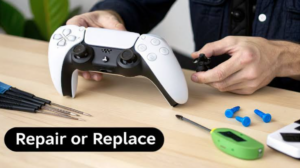

You just sat down. You are ready to play. You press the PS button on your DualSense controller.
Nothing happens.
No light. No sound. No game. Just you, staring at your PS5, wondering what went wrong.
Don’t worry. This happens to almost every PS5 owner at some point. The good news? Most of the time, it is a small problem with an easy fix.
In this guide, we will walk you through every reason your PS5 controller is not connecting, and how to fix each one. Step by step. No tech skills needed.
Let’s understand this step by step.
Why Is My PS5 Controller Not Connecting?
Before we fix the problem, let’s understand it. A DualSense controller can fail to connect for a few common reasons:
- Low battery or dead battery
- Bluetooth connection got confused
- USB cable is faulty or just for charging
- Controller needs a reset
- PS5 software needs an update
- Too many devices connected at once
Sounds like a lot? Don’t worry. Most fixes take less than 2 minutes.
Fix 1: Check the Charge (The Most Common Reason)
This is the number one cause. Seriously.
Your DualSense controller runs on a battery, just like your phone. If the battery is empty, the controller simply won’t turn on.
What to do:
- Plug the controller into your PS5 using a USB-C cable
- Use the cable that came in the box (some cheap cables only charge, they don’t send data)
- Wait 5 to 10 minutes
- Press the PS button again
If the light comes on now, you found your answer. Charge it fully before you play next time.
Real-life tip: Think of it like your phone. You wouldn’t expect a dead phone to turn on without charging, right? Your controller works the same way.
Fix 2: Use a Wired Connection First
Wireless is great. But it can be tricky sometimes.
If your controller is not connecting over Bluetooth, plug it in directly with a USB cable. This almost always works, because a wired connection skips Bluetooth completely.
Steps:
- Take a USB-C to USB-A cable
- Plug one end into the controller
- Plug the other end into your PS5
- Press the PS button
Once it connects, you can go back to wireless mode later. This step also helps you tell if the problem is your controller or your Bluetooth.
Fix 3: Restart Your PS5
Sounds too simple? It works more often than you think.
Just like your phone or laptop, your PS5 can get confused after running for a long time. A quick restart clears out small glitches.
How to restart:
- Press and hold the PS5 power button for about 7 seconds
- Wait for it to fully shut down (you will hear two beeps)
- Turn it back on
- Try connecting your controller again
This fixes the problem more often than people expect.
Fix 4: Reset the Controller (The Power Fix)
If charging and restarting didn’t work, it’s time to reset the controller itself. This is like giving it a fresh start.
Your DualSense controller has a tiny reset button. It’s hidden, so you’ll need a small pin or paperclip.
Steps to reset:
- Flip the controller over. Look near the L2 button.
- You’ll see a tiny hole. That’s the reset button.
- Insert a small pin and press gently for 5 seconds.
- Connect the controller to your PS5 using a USB cable.
- Press the PS button.
This clears out any confusion inside the controller’s memory. It is safe, and it won’t delete your PS5 data.
Fix 5: Re-Pair the Controller with Bluetooth
Sometimes, your controller and PS5 simply lose track of each other. This happens more if you use the same controller with a PC or phone too.
How to re-pair:
- Connect the controller with a USB cable first.
- Go to Settings on your PS5.
- Select Accessories, then Controllers.
- Choose Connect Controller.
- Wait for confirmation, then unplug the cable and try wireless.
Think of this like reintroducing two old friends. Sometimes they just need a proper handshake again.
Fix 6: Update Your PS5 System Software
An outdated PS5 system can cause connection problems. Sony regularly releases updates that fix bugs, including controller issues.
Steps to update:
- Go to Settings
- Select System
- Choose System Software
- Click Update and Settings
- Select Update Now
If your PS5 has been offline for a while, this step matters a lot. Many users report that a simple update solved their connection trouble completely.
Fix 7: Remove Extra Devices
Your PS5 can only handle a certain number of connected devices at once. If you have Bluetooth headphones, another controller, or a keyboard connected too, it may cause conflicts.
What to do:
- Go to Settings, then Accessories
- Check the list of connected devices
- Disconnect anything you’re not currently using
- Try connecting your controller again
Less clutter means fewer problems. Simple as that.
Fix 8: Check for Physical Damage
Sometimes, the issue isn’t software. It’s hardware.
Ask yourself:
- Did you drop the controller recently?
- Is the USB port on the controller loose or bent?
- Does the cable work fine with other devices?
If you answered yes to any of these, the controller or cable itself might be damaged. Try a different cable first. If that doesn’t help, the controller may need repair or replacement.
Fix 9: Try a Different Controller
This step helps you find out where the real problem is.
If you have access to another DualSense controller, connect it to your PS5.
- If it connects fine, your original controller has the issue.
- If it also fails, the problem is likely with your PS5 itself.
This simple test saves you time and guesswork.
How to Prevent This Problem in the Future
Fixing the issue is great. But avoiding it next time is even better. Here are some easy habits that help:
- Charge your controller fully after every long gaming session
- Turn off your controller properly instead of just walking away
- Keep your PS5 software updated regularly
- Avoid using cheap, unofficial charging cables
- Don’t connect too many Bluetooth devices at the same time
Small habits like these keep your setup smooth and stress-free.
Quick Summary: Fixing a PS5 Controller That Won’t Connect
Here’s a fast recap you can follow anytime this happens:
- Charge the controller with a USB cable
- Try a wired connection first
- Restart your PS5
- Reset the controller using the pinhole button
- Re-pair it through PS5 settings
- Update your PS5 system software
- Disconnect other Bluetooth devices
- Check for physical damage
- Test with a different controller if possible
Most people fix this within 5 minutes. You’ve got this.
Final Thoughts
A PS5 controller not connecting is annoying, but it’s rarely a serious problem. In most cases, it’s just a low battery, a Bluetooth mix-up, or software that needs a quick update.
Work through the fixes above, one by one, and you’ll be back in the game in no time. And once it’s working again, those small habits we shared will help keep it that way.
Now go enjoy your game. You’ve earned it.