
Do you want to stop paying for Xbox Game Pass? Maybe the price went up. Maybe you don’t have time to play games anymore. Whatever the reason, you are in the right place.
Cancelling Xbox Game Pass is not hard. You do not need to be a tech expert. You just need 5 minutes and this simple guide.
In this article, you will learn:
- How to cancel Xbox Game Pass on the web
- How to cancel on your PC
- How to cancel using your phone
- What happens to your games after you cancel
- How to get a refund (if you are eligible)
- Common mistakes to avoid
Let’s understand this step by step.
What Is Xbox Game Pass?
Xbox Game Pass is a subscription service from Microsoft. You pay every month. In return, you get access to hundreds of games.
There are different plans:
- Xbox Game Pass Core
- Xbox Game Pass Essential
- Xbox Game Pass Premium
- Xbox Game Pass Ultimate
Each plan costs a different amount. Ultimate is the most expensive. It gives you the most benefits, like online multiplayer and cloud gaming.
But here is the thing. If you are not using it much, paying every month feels like a waste of money. That’s when people search for how to cancel it.
Before You Cancel, Know This
Here is something important. When you cancel Xbox Game Pass, you don’t lose access right away.
Your subscription stays active until your current billing period ends. So if you paid for the month, you can keep playing until that month is over.
After that date, you will lose:
- Access to the Game Pass game library
- Online multiplayer (if you had Ultimate)
- Any special member perks
But don’t worry about your saved data. Your cloud saves, achievements, and progress stay safe on your Xbox profile. If you come back later, everything will still be there.
Method 1: Cancel Xbox Game Pass on the Web (Easiest Way)
This is the best method. It works from any device with internet. You don’t even need your console.
Here is how you do it:
- Open your web browser (Chrome, Edge, anything works).
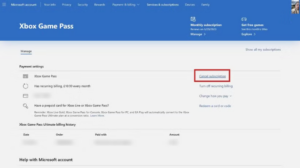
- Go to account.microsoft.com/services
- Sign in with the email and password linked to your Xbox account.
- Look for Subscriptions in the menu.
- Find your Xbox Game Pass plan (it could say Core, Essential, Premium, or Ultimate).
- Click Manage.
- Select Cancel subscription or Turn off recurring billing.
- Confirm your choice.
That’s it. You are done. Simple, right?
Microsoft may also ask if you want to switch to a cheaper plan instead of fully cancelling. If you just want to pay less, this is a good option to consider.
Method 2: Cancel Through the Microsoft Store on PC
Do you use Game Pass mostly for PC gaming? You can cancel right from the Microsoft Store app. No browser needed.
Steps:
- Open the Microsoft Store app on your Windows PC.
- Click your profile icon (top right corner).
- Select My account or Subscriptions.
- Find Xbox Game Pass in the list.
- Click Manage, then choose Cancel subscription.
- Confirm the cancellation.
This method feels quick because you don’t need to leave your desktop.
Method 3: Cancel Using the Xbox App on Your Phone
Many people prefer their phone. It’s fast, and you can do it while lying on your couch.
Steps:
- Open the Xbox app on your iPhone or Android phone.
- Tap your profile picture.
- Go to Settings, then Subscriptions.
- Select your Xbox Game Pass plan.
- Tap Cancel subscription.
- Confirm when asked.
Easy job, right? The whole thing takes less than 5 minutes.
A Quick Note About Cancelling on Console
In the past, you could cancel directly through your Xbox console menu. But Microsoft changed this. Now, most people need to cancel through the web browser or the Microsoft account page instead.
If your console has a built-in browser (like Microsoft Edge on Xbox), you can use that to go to account.microsoft.com/services and cancel from there.
Can You Get a Refund After Cancelling?
Good question. The answer is: sometimes, yes.
Here is Microsoft’s refund policy in simple words:
- If you cancel within 30 days of your first purchase, you may get a full refund.
- If you cancel within 30 days after a recurring payment, you may get that last payment back.
- After 30 days, refunds are usually not given.
To ask for a refund, go to the same Subscriptions page where you cancelled. Look for a refund option, or contact Xbox Support directly.
There is no guarantee every time. But it doesn’t hurt to try, right?
What Happens to Your Games After Cancelling?
This worries a lot of players. Let’s clear it up.
- Games you downloaded through Game Pass will stop working after your subscription ends.
- Games you own separately (bought outright) will still work fine.
- Your progress, saves, and achievements stay linked to your Xbox profile forever.
So if you rejoin Game Pass later, or buy the game on its own, you can pick up right where you left off. Nothing is lost.
Should You Cancel or Downgrade?
Before you fully cancel, ask yourself this: do I still play a few games sometimes?
If yes, downgrading might save you money without losing everything.
Here’s a simple comparison:
| Plan | Best For | What You Keep |
|---|---|---|
| Game Pass Core | Casual players, online play | Basic game library, multiplayer |
| Game Pass Essential | Light gamers | Small game catalog |
| Game Pass Premium | Regular players | Bigger library, cloud gaming |
| Game Pass Ultimate | Heavy gamers | Everything, including day-one releases |
If money is the main problem, switching to a lower tier can be a smart middle option. Full cancellation makes sense only if you really don’t play at all right now.
Common Mistakes to Avoid When Cancelling
Let’s talk about a few things people get wrong.
Mistake 1: Forgetting to check the billing date. You keep access until the period ends. Don’t cancel and expect access to stop instantly (unless that’s what you want).
Mistake 2: Cancelling on the wrong account. If you have multiple Microsoft accounts, make sure you’re logged into the one linked to your subscription.
Mistake 3: Expecting an automatic refund. Refunds are not automatic. You need to check eligibility and sometimes request it yourself.
Mistake 4: Assuming console cancellation still works the old way. As mentioned earlier, most cancellations now happen through the web, not the console menu.
How to Avoid Future Unwanted Charges
Want to make sure you never get charged again by mistake? Follow these small tips:
- Turn off recurring billing, not just delete the app.
- Check your email for a cancellation confirmation from Microsoft.
- Set a reminder a few days before your renewal date, just in case.
- Review your Microsoft account subscriptions every few months.
These small habits save you from surprise charges later.
Final Thoughts
Cancelling Xbox Game Pass is simple once you know the steps. Whether you use your browser, PC, or phone, the whole process takes just a few minutes.
Remember these key points:
- Cancel through account.microsoft.com/services for the easiest experience.
- Your access continues until the billing period ends.
- Your saves and achievements are always safe.
- Refunds are possible within 30 days, but not guaranteed.
- Downgrading is a good option if you still want to play sometimes.
Gaming should fit your budget and your lifestyle. If Xbox Game Pass isn’t working for you right now, cancelling is completely okay. And if you ever want to come back, your Xbox profile will be waiting for you, just as you left it.