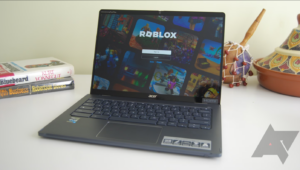

Do you have a Chromebook and want to play Roblox? Good news. You can do it. And it is not hard at all.
Many students and kids use Chromebooks for school. But these laptops are also great for games. Roblox is one of the most loved games in the world. Millions of players build worlds, play mini games, and hang out with friends every day.
So can Roblox run on a Chromebook? Yes, it can. In this guide, we will show you every single way to play Roblox on your Chromebook. We will keep it simple. No hard words. No confusing steps. Just easy tips that work.
Let’s understand this step by step.
Can You Play Roblox on a Chromebook?
Yes, you can play Roblox on a Chromebook. But there is a small twist.
Chromebooks do not use Windows. They use a system called Chrome OS. Roblox was first made for Windows and Mac computers. So you cannot install the normal Roblox app the same way you do on a Windows laptop.
But don’t worry. Chromebooks have a smart trick. Many Chromebooks can run Android apps through the Google Play Store. Roblox has an Android app. This means you can download and play Roblox just like you would on a phone or tablet.
Some newer Chromebooks are even strong enough to run Roblox smoothly, with good graphics and fast speed.
What You Need Before You Start
Before we jump into the steps, check these things first:
- A Chromebook that supports the Google Play Store
- A stable internet connection (Wi-Fi works best)
- At least 2GB of free storage space
- A Roblox account (or you can make one for free)
Not sure if your Chromebook supports Play Store? We will show you how to check in the next part.
Step 1: Check If Your Chromebook Supports Google Play Store
This is the most important step. Without Google Play Store, you cannot install the Roblox Android app the easy way.
Here is how to check:
- Click on the clock in the bottom right corner of your screen
- Click the Settings (gear icon)
- On the left side, look for Apps
- If you see Google Play Store, your Chromebook supports it
If you see this option, great. You are ready to move forward. If not, don’t worry. We have another method for you below (using the browser).
Step 2: Turn On Google Play Store
Found the Play Store option? Now let’s turn it on.
- Go to Settings
- Click Apps
- Click Google Play Store
- Click Turn On
- Accept the terms and conditions
Give it a minute. Your Chromebook will set everything up. Once done, you will see the Play Store icon in your app list.
Step 3: Download Roblox From Play Store
Now comes the fun part.
- Open the Google Play Store app
- Type Roblox in the search bar
- Tap on the Roblox app (it has a blue and white logo)
- Click Install
The app will download in a few minutes. It depends on your internet speed. Once installed, you will see the Roblox icon on your app shelf.
Step 4: Log In or Sign Up
Open the Roblox app. If you already have an account, just log in with your username and password.
New to Roblox? No problem. Making an account is free and quick:
- Click Sign Up
- Enter your birthday
- Choose a username and password
- Click Sign Up to finish
Tip: Choose a username you will remember easily. You cannot change it too many times later without extra steps.
Step 5: Start Playing
That’s it. You are in. Now you can search for games, join your friends, or explore the Roblox universe.
Feels good, right? You did it in just five simple steps.
What If Your Chromebook Does Not Support Play Store?
Some older Chromebooks don’t have Google Play Store. But that does not mean you cannot enjoy Roblox at all. Here are some other ways.
Method 1: Play Roblox Through the Browser
Roblox has a browser version too. Here is how to use it:
- Open Google Chrome on your Chromebook
- Go to the official Roblox website
- Log in or create your account
- Click on any game to start playing
Keep in mind, the browser version may need extra plugins or setup, since Roblox has moved most play to its app. Performance can also feel slower on the browser compared to the app.
Method 2: Use Cloud Gaming Services
Cloud gaming lets you stream games from powerful servers, even if your Chromebook is not that strong. Think of it like watching a video, but you are actually playing the game live.
Some cloud gaming platforms let you play Roblox this way. All you need is good internet speed. This method works well if your Chromebook is older or has low storage.
Method 3: Use Linux (For Advanced Users)
Chrome OS has a hidden feature called Linux (Beta). It lets you run some Windows-style programs on your Chromebook.
This method is a bit technical. It is best for older kids, teens, or parents who are comfortable following tech steps. If you are a beginner, try Method 1 or Method 2 first.
Tips to Make Roblox Run Smoothly on Chromebook
Roblox needs some power to run well. Here are simple tips to make your gameplay smooth and enjoyable:
- Close extra tabs and apps. Too many open tabs slow down your Chromebook.
- Connect to strong Wi-Fi. Weak internet causes lag and disconnects.
- Restart your Chromebook often. This clears memory and keeps things fresh.
- Keep your Chromebook updated. Updates fix bugs and improve speed.
- Lower in-game graphics settings. This helps older Chromebooks run games faster.
- Clear cache regularly. This frees up space and improves performance.
Small changes like these can make a big difference. Think of it like cleaning your room before inviting friends over. Everything just works better.
Common Problems and How to Fix Them
Even with the best steps, sometimes things don’t go as planned. Here are common issues and easy fixes.
Problem 1: Roblox Keeps Crashing
This usually happens when your Chromebook is low on memory. Try these fixes:
- Close other apps and tabs
- Restart your Chromebook
- Update the Roblox app
- Clear the app cache from Settings
Problem 2: Roblox Is Too Slow or Laggy
Lag can ruin the fun. Here is what to do:
- Check your internet speed
- Move closer to your Wi-Fi router
- Lower the game’s graphic settings
- Close background apps
Problem 3: Play Store Option Is Missing
If you don’t see Play Store in settings, your Chromebook model might not support it. In that case, use the browser method or cloud gaming method we shared above.
Problem 4: Roblox Won’t Install
If the app won’t download, try this:
- Check your storage space
- Restart the Chromebook
- Update Chrome OS to the latest version
- Try uninstalling and installing again
Is Roblox Safe for Kids on Chromebook?
This is a common question parents ask. Roblox is generally safe when used the right way. It has parental control settings that let parents manage what their child can see and do.
Here are some safety tips:
- Turn on Parental Controls in account settings
- Set screen time limits
- Enable Account Restrictions for younger kids
- Talk to your child about safe online behavior
Roblox also has a reporting system. If someone behaves badly in a game, players can report them right away.
Why Play Roblox on a Chromebook?
You might wonder, why not just use a phone or a gaming PC? Great question.
Chromebooks offer a few nice benefits:
- Bigger screen than a phone, better for building and exploring
- Keyboard and mouse support, which many players prefer over touch controls
- Affordable price, since Chromebooks cost less than gaming laptops
- Long battery life, so you can play longer without charging
For students who already use a Chromebook for school, this is a smart way to enjoy gaming without buying extra devices.
Final Thoughts
Playing Roblox on a Chromebook is totally possible, and honestly, it’s pretty simple once you know the right steps. Whether you use the Google Play Store, the browser, or cloud gaming, there is a method that fits your device.
Here is a quick recap:
- Check if your Chromebook supports Google Play Store
- Turn on the Play Store
- Download the Roblox app
- Log in or create your account
- Start playing and having fun
No Play Store? No problem. Try the browser version or a cloud gaming service instead.
Roblox is all about creativity, friendship, and fun. Now that you know how to run it on your Chromebook, nothing is stopping you from jumping in. Grab your Chromebook, log in, and let the adventure begin.